When working with images, you will often see terms such as dimensions, resolution, pixels and file size.
These terms are related, but they do not mean the same thing.
Understanding the difference can help you choose the right image dimensions for websites, social media, documents and printing.
Let's break down the basics.
1. What Are Image Dimensions?
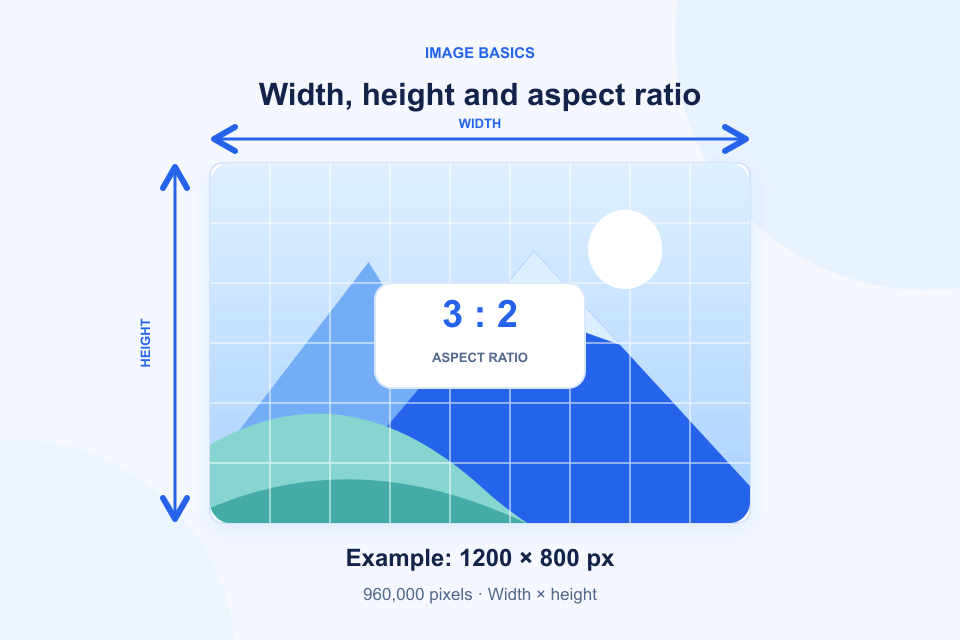
Image dimensions describe the width and height of an image in pixels.
For example:
- 800 × 600 pixels
- 1200 × 800 pixels
- 1920 × 1080 pixels
The first number represents width.
The second number represents height.
An image that measures 1200 × 800 pixels contains 1200 pixels across and 800 pixels vertically.
Its total pixel count is:
1200 × 800 = 960,000 pixels.
This is commonly referred to as approximately 0.96 megapixels.
2. What Is Image Resolution?
Resolution can refer to different things depending on the context.
For digital images, people often use resolution to describe the number of pixels in an image.
For printing, resolution is frequently expressed as PPI, or pixels per inch.
For example, an image may have dimensions of 2400 × 3000 pixels.
If printed at 300 PPI, its theoretical print dimensions are:
- Width: 8 inches.
- Height: 10 inches.
The important distinction is that changing the PPI metadata alone does not create additional image pixels.
The actual pixel dimensions determine how much image information is available.
3. What Is Image File Size?
Image file size describes how much storage space the file occupies.
It is usually measured in:
- KB (kilobytes)
- MB (megabytes)
Two images can have exactly the same dimensions but very different file sizes.
Why?
Because file size also depends on:
- Image format.
- Compression method.
- Compression quality.
- Color information.
- Transparency.
- Metadata.
For example, a 1920 × 1080 image saved as JPEG may have a different file size from the same image saved as PNG or WebP.
More pixels do not automatically mean a proportionally larger file.
4. What Is Aspect Ratio?
Aspect ratio describes the relationship between image width and height.
Common examples include:
| Aspect Ratio | Typical Shape |
|---|---|
| 1:1 | Square |
| 4:3 | Standard landscape |
| 3:2 | Photography |
| 16:9 | Widescreen |
| 9:16 | Vertical mobile content |
An image with dimensions of 1200 × 800 has a 3:2 aspect ratio.
When resizing an image, preserving the aspect ratio helps prevent stretching or distortion.
If you change the width without adjusting the height proportionally, the image may appear unnaturally wide or tall.
5. How to Choose the Right Image Dimensions
The right dimensions depend on where the image will be used.
For websites
Use dimensions appropriate for the maximum display size and responsive layout.
Avoid uploading unnecessarily large images when a smaller version is sufficient.
For social media
Follow the platform's current image requirements.
Different placements may require square, landscape or portrait images.
For documents
Consider the required display size and whether the image will be printed.
For high-resolution displays
Higher pixel dimensions may be useful when images need to appear sharp at larger display sizes.
However, extremely large images can increase storage and loading costs.
6. How to Resize Image Dimensions Correctly
Before resizing, identify the width and height you actually need.
Then:
- Open the Simpixly Image Resizer.
- Select your original image.
- Enter the desired width.
- Preserve the aspect ratio when appropriate.
- Review the resulting dimensions.
- Download the resized image.
In Simpixly, use Pixels for exact width and height, then click Resize Image to generate the result. Presets fit the complete picture and can add padding; they do not crop it. The tool supports one static JPG, PNG or WebP up to 20 MB, 8192 pixels per side and 16 megapixels. Output dimensions must also remain within the pixel limits.
If the image must fit a specific layout, check both its dimensions and its aspect ratio.
Avoid enlarging small images too much, because upscaling cannot recreate missing original detail.
7. Image Dimensions and File Size Work Together
Dimensions and file size are separate properties, but they influence each other.
Reducing dimensions often reduces file size because fewer pixels need to be stored.
Changing the format or compression settings can reduce file size without changing the dimensions.
For many practical tasks, the best approach is to choose suitable dimensions first and then optimize the file format and compression.
For practical quality checks, read how to resize without unnecessary quality loss. If the pixel dimensions are already right but the file is too large, see how to reduce image file size.
Frequently Asked Questions
Are image dimensions the same as image resolution?
Not exactly. Dimensions describe pixel width and height. Resolution can refer to pixel dimensions or pixel density, depending on context.
Does increasing image resolution improve quality?
Increasing the pixel dimensions does not automatically restore detail. Upscaling can create more pixels, but it cannot recover information that was never captured.
What is a good image size for a website?
It depends on the display area, layout, image content and device. Choose dimensions appropriate for the actual display rather than using one fixed size for every image.
Does reducing image dimensions reduce file size?
Often, yes. Fewer pixels usually require less data, although the final file size also depends on format and compression.
Resize Images with Simpixly
Need to change your image width or height?
Use Simpixly Image Resizer to adjust supported image dimensions and download the result.